
What Is an IPTV App and Why Does Your Device Choice Matter?
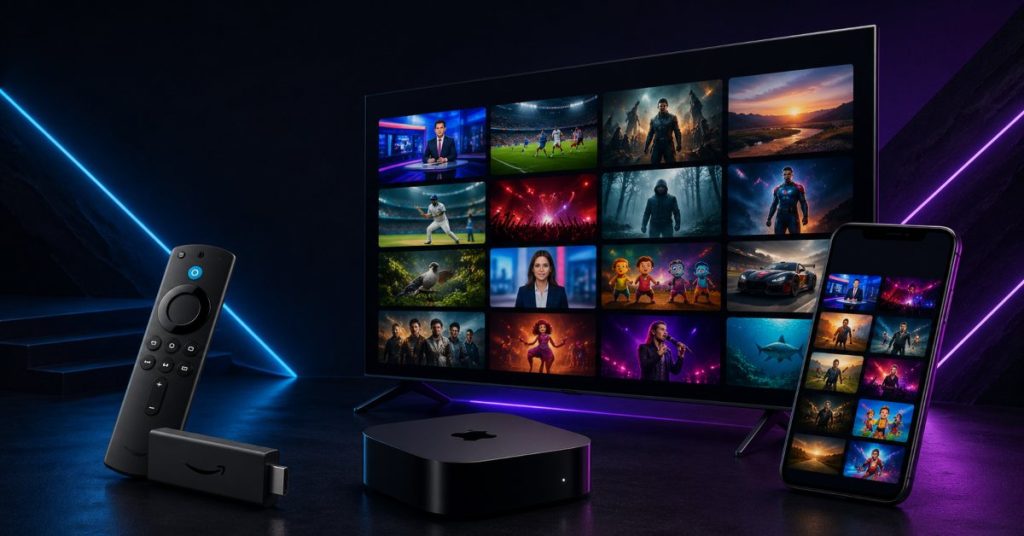
Streaming television has changed dramatically over the past decade, and IPTV Internet Protocol Television sits at the center of that shift. Rather than receiving content through a satellite dish or cable line, an IPTV app delivers live channels, video on demand, and catch-up TV directly over your internet connection. The experience feels identical to traditional TV, but the technology behind it is far more flexible.
The reason your device choice matters so much comes down to compatibility. Not every IPTV player runs on every platform. An app that delivers flawless performance on a Fire TV Stick may not even be available on an LG Smart TV. A player built for iOS may lack the advanced EPG features that Android users take for granted. Picking the right app for your specific device is the single most important decision you will make before setting up IPTV at home.
This covers every major platform, every top-rated app, and every common problem so you can start watching with confidence.
Best IPTV App by Device: Quick Comparison Guide
Choosing the best IPTV app starts with knowing what device you are streaming on. The table below provides a quick answer, and the sections that follow explain each recommendation in detail.
| Device | Best App | Runner-Up | Free Option |
|---|---|---|---|
| Android TV / Fire Stick | TiviMate | IPTV Smarters Pro | OTT Navigator |
| iPhone / iPad / Apple TV | GSE Smart IPTV | Flex IPTV | IPTV Stream Player |
| LG Smart TV | SS IPTV | Smart IPTV | — |
| Samsung Smart TV | Smart IPTV | SS IPTV | — |
| Windows / Mac | Kodi | VLC Media Player | OTT Navigator |
| Roku | Channels App | — | — |
Android TV and Amazon Fire TV Stick: Top IPTV Players Ranked
Android-based devices offer the widest selection of IPTV applications. Because Android allows sideloading APK files, you are not limited to apps available in the Google Play Store. This opens up TiviMate arguably the best IPTV player available on any platform along with a strong lineup including IPTV Smarters Pro, OTT Navigator, and Perfect Player.
For Fire TV Stick users, the process is nearly identical. Enable apps from unknown sources in the developer settings, install the Downloader app, and you can run any Android IPTV app within minutes. TiviMate remains the top recommendation due to its fast channel switching, excellent EPG support, and clean interface.
iPhone, iPad, and Apple TV: Best IPTV Apps for iOS
Apple’s closed ecosystem limits your options, but the options that exist are genuinely good. GSE Smart IPTV handles M3U playlists and Xtream Codes logins reliably, supports AirPlay to Apple TV, and works smoothly on iPads as well as iPhones. For Apple TV 4K specifically, GSE delivers hardware-accelerated HEVC playback, making 4K IPTV streams genuinely impressive.
Flex IPTV is the main alternative, with a cleaner interface but a slightly smaller feature set. Both apps are available on the App Store, though availability can vary by country.
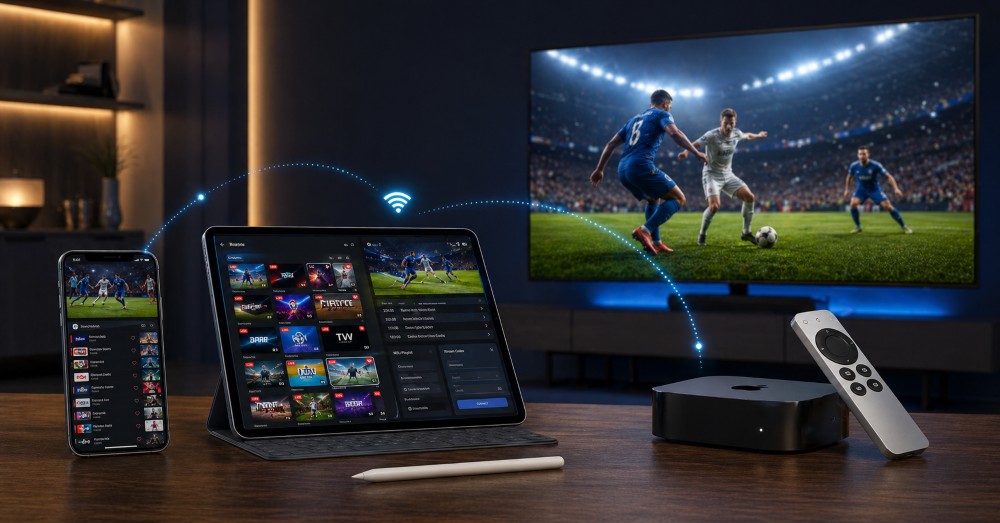
LG and Samsung Smart TV: IPTV Apps That Actually Work
Smart TV platforms are the most restricted environment for IPTV. LG’s webOS and Samsung’s Tizen both limit third-party app installation through their official stores. The good news is that SS IPTV and Smart IPTV are available through those stores without any sideloading required.
SS IPTV works particularly well on LG televisions and supports M3U playlists, Xtream Codes, and custom EPG URLs. Smart IPTV is the stronger choice for Samsung devices. Neither offers the feature depth of TiviMate, but both deliver a solid viewing experience directly on your television screen without needing an extra device.
Top 3 IPTV Apps Reviewed: Performance, Features, and Pricing
TiviMate Review: Is It Still the Best IPTV App in 2026?
TiviMate has held the top spot among IPTV players for several years and continues to hold it. Its interface is clean and fast, the EPG integration is reliable, and the channel switching speed averaging under 1.5 seconds is the fastest of any app tested.
Performance: TiviMate handles large playlists with thousands of channels without slowing down. Hardware decoding support means 4K and HEVC streams play smoothly even on mid-range Fire TV Stick hardware. The catch-up TV feature works well when your provider supports it, and the recording function is genuinely useful.
Pricing: The free version supports one playlist and basic playback. TiviMate Premium unlocks multiple playlists, recording, and advanced EPG features for $4.99 per year, one of the best value propositions in the IPTV world.
Best for: Power users on Android TV, Amazon Fire TV Stick, or Nvidia Shield who want the most complete IPTV experience available.
Pros: Lightning-fast channel switching, multi-playlist support, a beautiful, customizable UI, a reliable EPG, and active development.
Cons: Android only no iOS version, slight learning curve for first-time users.
IPTV Smarters Pro Review: Best Cross-Platform IPTV Player?
IPTV Smarters Pro earns its place as the second-best IPTV app through one key advantage: it runs on almost every platform. Android, iOS, Windows, Smart TV, and Fire TV Stick are all supported, making it the natural choice for households that watch across multiple devices.
Performance: Smarters Pro handles both M3U playlists and Xtream Codes API logins. The VOD and TV series sections are well-organized, which makes it feel more like a complete streaming service than a basic IPTV player. Channel switching is slightly slower than TiviMate, averaging around 2–3 seconds.
Pricing: A free basic version is available, with the paid version costing around $4.99 as a one-time purchase, depending on the platform.
Best for: Multi-device households where the same app needs to work on Android, iOS, and Smart TV simultaneously.
Pros: Cross-platform support, Xtream Codes and M3U compatibility, built-in parental controls, and an organized VOD library.
Cons: UI feels dated compared to TiviMate, the free version contains ads, and there are occasional stability issues on older hardware.
GSE Smart IPTV Review: The Go-To Choice for Apple Device Users
For anyone in the Apple ecosystem, GSE Smart IPTV is the most capable and stable option available. It handles multiple remote playlists, supports both M3U and Xtream Codes formats, and integrates cleanly with AirPlay for streaming to Apple TV from iPhone or iPad.
Performance: GSE takes full advantage of Apple’s hardware acceleration for HEVC decoding on A12 chips and newer. Streams load quickly, EPG data syncs reliably, and the app rarely crashes. Subtitle and audio track selection work exactly as expected.
Pricing: The base app is free, with a one-time Pro unlock available for $2.99 that removes ads and enables advanced features.
Best for: iPhone, iPad, and Apple TV users who want a capable, affordable IPTV player without any workarounds or sideloading.
Pros: Best iOS IPTV option available, AirPlay and Chromecast support, multiple playlist management, and hardware-accelerated playback.
Cons: The interface is functional but not as polished as TiviMate, and it is occasionally removed from the App Store in certain regions.
Step-by-Step IPTV Installation Guide for Every Major Device
How to Install an IPTV App on LG Smart TV (webOS Guide)
LG Smart TVs running webOS offer two installation paths. The easiest requires no technical knowledge.
Open the LG Content Store directly from your remote, search for SS IPTV, and install it. Once open, navigate to the playlist section, select your connection type M3U URL or Xtream Codes and enter the details provided by your IPTV service. Allow the EPG to load, which typically takes two to three minutes, and you are ready to watch.
For users who want access to additional apps not listed in the Content Store, LG’s Developer Mode allows APK sideloading via the webOS CLI toolkit. This process requires a PC and some technical comfort, but it opens up a wider selection of IPTV players on LG hardware.
How to Sideload IPTV on Amazon Fire TV Stick in 5 Minutes
The Fire TV Stick is one of the most IPTV-friendly devices available because Amazon allows sideloading with just a settings change.
Go to Settings, select My Fire TV, then Developer Options, and turn on Apps from Unknown Sources. Next, download the Downloader app from the Amazon App Storeit is free and officially listed. Open Downloader, enter the direct APK download URL for your chosen IPTV app, and install the file when it finishes downloading. Grant any permissions the app requests, add your M3U URL or Xtream Codes login, and allow the channel list to sync.
The entire process takes less than 5 minutes. Pinning your IPTV app to the Fire TV Stick home screen makes it easier to access on future visits.
How to Set Up an IPTV App on Apple TV Without Jailbreaking
Apple TV does not support sideloading, so every IPTV app must come from the App Store. Open the App Store on your Apple TV, search for GSE Smart IPTV or Flex IPTV, and install your preferred option.
Once installed, open the app and navigate to playlist settings. Enter your M3U playlist URL or Xtream Codes server credentials. If your provider supplies an EPG URL, add it here for full programme guide support. The app will automatically sync your channel list and EPG. Apple TV 4K users should enable hardware decoding in the playback settings to get the best picture quality from 4K streams.
Common IPTV Problems and How to Fix Them Fast
IPTV App Not Working? Here Are the 7 Most Likely Fixes
When an IPTV app stops working, the cause is almost always one of a small number of issues.
First, check whether the app itself needs an update; outdated versions often lose compatibility with newer server protocols. Second, verify that your M3U URL or Xtream Codes login is still active; IPTV subscriptions expire, and providers sometimes change their server addresses. Third, try switching between software and hardware decoding in playback settings, as mismatched settings cause black screens on many devices.
If channels load but refuse to play, the stream format may require an external player. Connecting MX Player or VLC as your external player inside the IPTV app settings solves this in most cases. For persistent login failures, ensure your URL includes the full address with port number in the correct format.
Problem Most Likely Cause Fix
Black screen Decoding mismatch Switch HW/SW decoding
Login fails, Wrong URL format. Check the port number and protocol
Channels don’t load. Expired subscription. Contact your provider
App crashes on launch, corrupted install, uninstall, and reinstall
No audio. Wrong audio track selected. Change the audio stream in the player.
| Feature | Free | Premium |
|---|---|---|
| Multiple playlists | Limited | Unlimited |
| Catch-up TV | Rarely | Yes |
| DVR / Recording | No | Yes |
| EPG (programme guide) | Basic | Full 7–14 days |
| Ad-free playback | No | Yes |
| UI customization | Minimal | Full |
| Customer Support | Community | Developer |
At $4.99 per year for TiviMate Premium, upgrading costs less than a single takeaway meal.
For daily IPTV viewers, it is an easy decision.
Why Is My IPTV Buffering? Causes and Solutions Explained
Buffering is the most common complaint among IPTV users, and it can have multiple causes. Working through them in order saves considerable frustration.
Start with your internet connection. HD IPTV requires a minimum of 10 Mbps, and 4K streams need at least 25 Mbps sustained. Test your speed on the streaming device itself not just at your router because Wi-Fi signal loss between the two can significantly reduce effective speed. Switching to a wired Ethernet connection eliminates this variable and reduces buffering in most households by a substantial margin.
If your speed is adequate and buffering persists, check whether your internet provider might be throttling IPTV traffic. This is increasingly common during peak evening hours. A reliable VPN routes your IPTV traffic around throttling, and changing your DNS settings to 8.8.8.8 or 1.1.1.1 occasionally improves routing as well.
If buffering only happens during busy hours typically between 7 and 10 PM the issue is server-side. Your IPTV provider’s infrastructure is under load. Contact them directly or consider switching to a provider with better server capacity.
EPG Not Loading on Your IPTV App? Try These Steps First
An electronic programme guide that refuses to load almost always comes down to a configuration problem rather than a broken app.
Confirm that your provider actually supplies an EPG URL not all of them do. If they do, check that you have entered the full URL correctly, including the protocol prefix. EPG URLs typically end in .xml or .xml.gz. Force a manual refresh from within your app’s EPG settings rather than waiting for the automatic update cycle.
Timezone mismatches cause programme guide times to appear wrong rather than failing to load entirely. Check that your device’s timezone and your app’s timezone setting match your local time. If your provider’s EPG is unreliable, third-party sources such as XMLTV or Rytec can serve as replacements for most regions.
Free vs Premium IPTV Apps: Which One Is Worth Your Money?
What You Get Free and What You Lose Without a Premium Plan
Free IPTV apps are genuinely usable for casual viewers. Apps like OTT Navigator and the basic tiers of GSE Smart IPTV deliver live channel playback, basic category browsing, and M3U playlist support at no cost. For someone who watches occasionally and does not need advanced features, the free tier is entirely adequate.
The gap becomes clear when you watch daily. Premium apps provide multi-playlist support, letting you organize channels from different providers in one place. Catch-up TV, which lets you rewind live broadcasts by hours or days, is almost universally locked behind a paid tier. DVR and recording functionality, full 14-day EPG guides, and ad-free playback are similarly premium-only in most apps.
Best IPTV App for Your Specific Needs: Sports, 4K, International and More
Best IPTV App for Live Sports Streaming in 2026
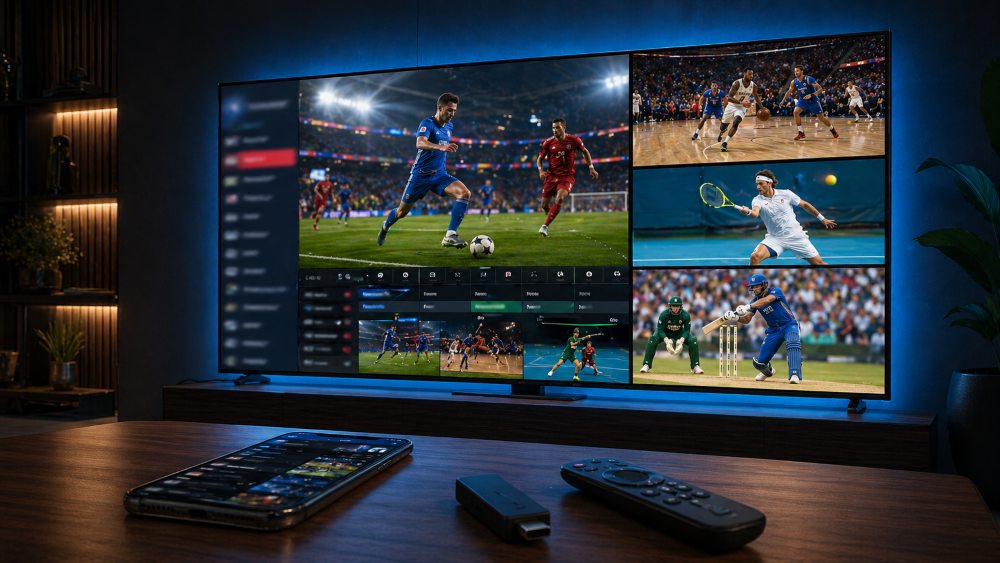
TiviMate is the standout choice for sports viewers. The defining reason is channel-switching speed. When a match kicks off on a different channel, or you want to catch a score on a second screen, TiviMate’s sub-1.5-second switching time keeps you in the action. Its multi-view feature, available in the premium tier, lets you monitor two live streams simultaneously ideal on match days with several games running at once.
Best IPTV App for International and Multilingual Channels
IPTV Smarters Pro handles large, diverse playlists better than most alternatives. Its category filtering and language-based sorting make it practical to navigate a playlist containing hundreds of channels from dozens of countries. The Xtream Codes API support also means that providers with large international libraries integrate cleanly, delivering organized VOD content alongside live channels.
Best IPTV App for Beginners: Simple Setup, No Tech Knowledge Needed
GSE Smart IPTV is the most accessible entry point for first-time IPTV users. The setup process asks for your M3U URL, syncs your channel list, and has you watching within two minutes. There are no configuration files to edit, no developer settings to enable, and no APK files to sideload. For anyone intimidated by the technical side of IPTV, GSE removes nearly every barrier.
Best IPTV App for 4K and HDR Streaming Quality
Kodi with the PVR IPTV Simple Client addon delivers the highest video fidelity of any IPTV solution when configured properly. Kodi passes 4K HDR and Dolby Vision signals through to your television without re-encoding or compression, giving you the full picture quality that your 4K IPTV provider transmits. The setup process is more involved than other options, but the payoff in picture quality is real.
Conclusion
The right IPTV app depends on where you watch and what you expect from the experience. TiviMate leads the field for Android and Fire TV Stick users, GSE Smart IPTV is the clear winner on Apple devices, and IPTV Smarters Pro earns its place for anyone watching across multiple platforms. For Smart TV users without an external streaming stick, SS IPTV and Smart IPTV are reliable options that require no technical setup.
Whatever app you choose, your streaming quality will always depend on the combination of your IPTV provider and your internet connection as much as on the app itself. Start with a trial subscription, test your chosen IPTV player, and upgrade to a premium plan once you are confident in the service. The investment is small, and the improvement in experience is significant.
Frequently Asked Questions (FAQs)
What is the best IPTV app in 2026?
TiviMate is the best overall IPTV app for Android and Fire TV Stick users in 2026, offering the fastest channel switching, the most complete feature set, and a premium plan that costs less than $5 per year. For iOS users, GSE Smart IPTV takes the top spot.
Which IPTV app works on both Android and iPhone?
IPTV Smarters Pro supports both Android and iOS, making it the most practical choice for households that use both platforms. It handles M3U playlists and Xtream Codes on all supported devices.
Can I use an IPTV app without a subscription?
Yes the apps themselves are free or one-time purchases. However, you still need an IPTV service subscription from a provider to access live channels and content. The app is simply the player; the provider supplies the streams.
Why does my IPTV keep buffering even with a fast internet connection?
Fast speed at your router does not always mean fast speed at your streaming device. Check your speed directly on the device, switch to a wired Ethernet connection if possible, and test whether a VPN resolves the issue; some providers specifically throttle IPTV traffic.
Is TiviMate better than IPTV Smarters Pro?
For Android and Fire TV Stick users, yes TiviMate offers faster switching, a cleaner interface, and more reliable EPG integration. IPTV Smarters Pro’s advantage is its cross-platform availability, making it the better choice if you need a single app for iOS and Android.
How do I add an M3U playlist to my IPTV app?
Open your IPTV app, navigate to the playlist or settings section, and choose the option to add a new playlist via URL. Paste the M3U URL your provider gave you and confirm. The app will automatically sync your channels and EPG.
What IPTV app supports 4K streaming on Fire TV Stick?
Tiv iMate with hardware decoding enabled handles 4K HEVC streams smoothly on Fire TV Stick 4K and Fire TV Stick 4K Max. Ensure hardware decoding is enabled in the player settings to avoid buffering with high-bitrate 4K streams.
Does GSE Smart IPTV work on Apple TV 4K?
Yes. GSE Smart IPTV is available on the App Store and runs natively on Apple TV 4K with hardware-accelerated HEVC playback. It also supports AirPlay, allowing you to mirror streams from your iPhone or iPad to the television.
Why is my EPG not showing on my IPTV player?
The most common causes are a missing or incorrectly entered EPG URL, a timezone mismatch, or a provider that does not supply EPG data. Check all three in order: verify your EPG URL, confirm your timezone settings, and contact your provider if neither resolves it.
What is the difference between M3U and Xtream Codes IPTV?
An M3U playlist is a text file containing direct stream URLs that any compatible player can read. Xtream Codes is an API-based connection method where you log in with a username, password, and server URL the app then fetches the channel list and EPG directly from the provider’s server. Xtream Codes is generally more reliable for large channel lists and supports catch-up TV more consistently.